It was supposed to be revolutionary—a sleek, high-tech mouse with a full touchscreen surface promising gesture control, app shortcuts, and futuristic navigation. Instead, it turned into one of the most frustrating peripherals I’ve used in years. This touchscreen mouse isn’t innovation. It’s over-engineering masquerading as progress.
The moment I unboxed it, the promise was clear: dynamic buttons, customizable swipe zones, and a glossy interface that made my $100 mechanical mouse look like a relic. But within hours, the illusion cracked. The touchscreen was oversensitive. Accidental swipes triggered app launches mid-scroll. The battery drained twice as fast as my standard wireless mouse. And worst of all—none of it made me faster, more precise, or even slightly more productive.
This isn’t just about one bad product. It’s about a growing trend in tech: adding complexity where none is needed, prioritizing novelty over usability, and sacrificing reliability for the sake of looking “cutting-edge.”
Let’s break down exactly why this touchscreen mouse became my over-engineering nightmare—and why you should think twice before jumping on the same bandwagon.
The Allure of Touch: Why Touchscreen Mice Seem Like a Good Idea
Touch interfaces have transformed smartphones and tablets. So why not mice? On paper, the logic seems sound. A touchscreen surface could replace static buttons, allow gesture-based shortcuts, and dynamically adapt to different applications—showing Photoshop tools in one window, browser tabs in another.
Manufacturers sell this as contextual computing—a mouse that “knows” what you need and surfaces the right controls automatically. Sounds great in a keynote. In practice? It’s a minefield of unintended interactions.
I tried using it during a video edit in Premiere Pro. The mouse detected a two-finger swipe meant for timeline scrubbing as a command to mute audio. In Excel, a clumsy thumb rest triggered a spreadsheet macro I didn’t mean to run. These aren’t rare edge cases—they’re daily occurrences when your input device behaves like a temperamental tablet.
Touch adds latency. It introduces ambiguity. And it assumes users want more control surfaces, not fewer.
Where Simplicity Gets Sacrificed for Features
Traditional mice work because they’re predictable. Left click, right click, scroll wheel. Maybe two side buttons. That’s enough for 99% of tasks. The touchscreen mouse, by contrast, tries to do everything—and fails at the basics.
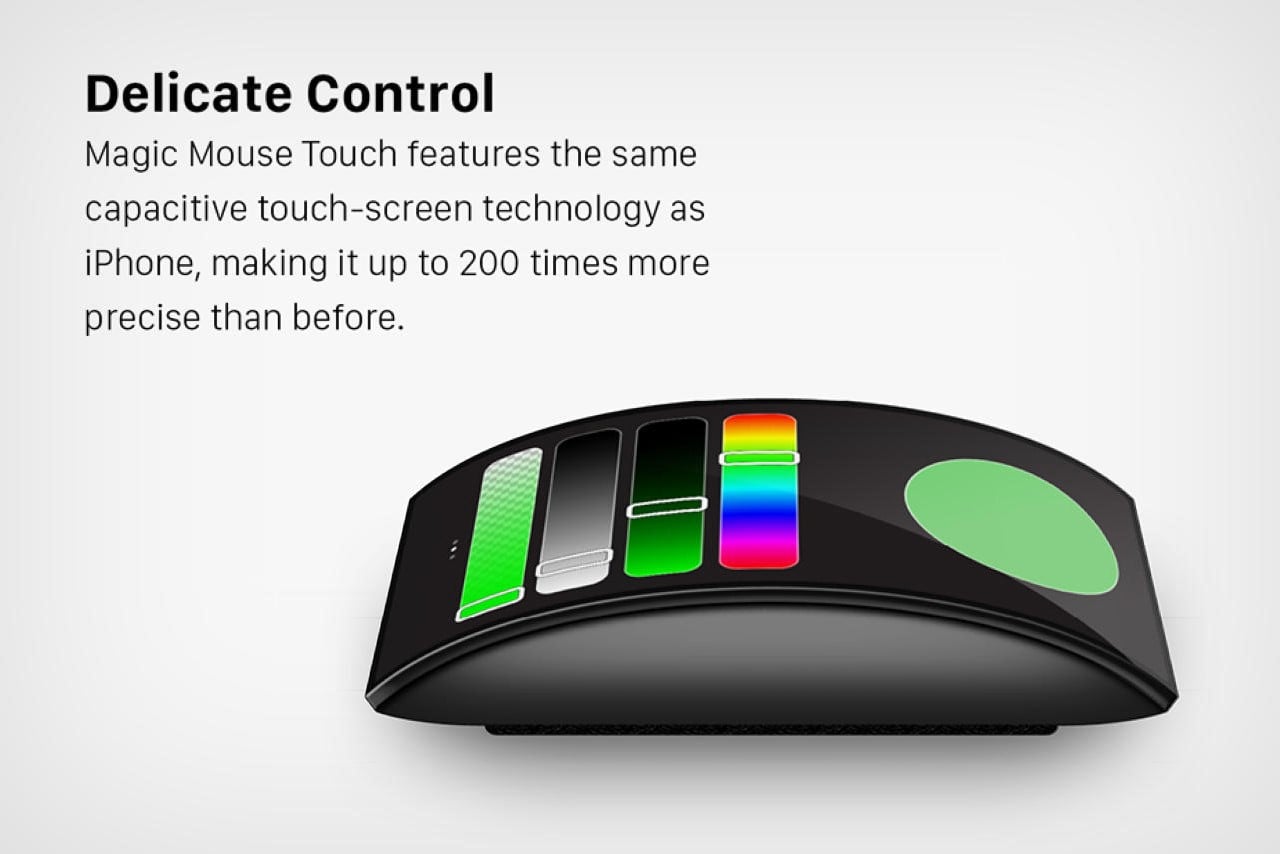
For example, the physical scroll wheel was replaced with a vertical touch strip. No tactile feedback. No resistance. Just a glassy surface that either scrolls too fast or not at all, depending on how sweaty your fingers are. I missed the satisfying click-click of a proper wheel. More importantly, I lost precision during long document reviews.
Then there’s the button placement. Instead of a dedicated DPI switch, sensitivity is adjusted via a touchscreen menu buried three layers deep. Want to switch from design work to gaming? You’ll need to tap through icons, wait for animations, and hope the mouse doesn’t time out.
And let’s talk about customization. The companion app promised limitless possibilities: assign swipe gestures, create app-specific profiles, even display live data like CPU usage on the touchscreen. But setting it up took two hours. And after that, half the features either didn’t work or caused crashes.
Complexity isn’t a feature. It’s a tax on attention.
Real-World Workflow Breakdowns
I tested this mouse across multiple scenarios: coding, graphic design, email triage, and video conferencing. Here’s what actually happened:
- Coding in VS Code: Constant accidental three-finger swipes opened a command palette I didn’t need. The touchscreen registered palm contact as input, disrupting typing flow.
- Design in Figma: Gesture conflicts made zooming erratic. I kept triggering “undo” when trying to pan.
- Email Management: The swipe-to-archive feature sounded useful—until it deleted a client message by accident.
- Meetings: The mouse powered down during a Zoom call because the touchscreen interpreted inactivity as “idle,” despite my hand resting on it.
None of these issues happened with my standard ergonomic mouse. The touchscreen didn’t enhance my workflow—it disrupted it.
And here’s the irony: the people most likely to benefit from advanced mouse functions—designers, developers, power users—already have efficient workflows built around keyboard shortcuts and muscle memory. Forcing them onto a touch interface doesn’t streamline anything. It interrupts.
The Hidden Costs of Over-Engineering
Beyond frustration, over-engineered devices carry real costs:
- Battery life: The touchscreen and backlighting drained the battery in 18 hours, compared to 60+ for my standard mouse.
- Durability concerns: Glass surfaces scratch. Touch sensors fail. Moving parts break. Simplicity lasts.
- Learning curve: I spent more time learning the mouse than gaining time from using it.
- Support and updates: The companion app hasn’t been updated in 11 months. One firmware bug permanently reversed my scroll direction—no fix available.

When you buy a mouse, you’re not just paying for hardware. You’re buying reliability, consistency, and time. This device compromised on all three.
Why Minimalist Design Wins
Some of the best input devices in history are gloriously simple. The Logitech MX Master series. The Apple Magic Mouse (flaws and all). The humble Microsoft IntelliMouse from the late '90s.
They work because they respect user intent. They minimize cognitive load. They don’t surprise you.
A well-designed mouse should disappear into your workflow—not demand constant calibration, updates, or troubleshooting. It should feel like an extension of your hand, not a mini-computer begging for attention.
Touchscreen tech has its place. But on a mouse? It’s solving a problem that doesn’t exist. We don’t need more ways to click. We need fewer ways to fail.
Alternatives That Actually Work
If you’re tempted by “smart” peripherals but want reliability, consider these alternatives—all proven, widely adopted, and free from touchscreen gimmicks:
| Device | Key Strength | Best For |
|---|---|---|
| Logitech MX Master 3S | Ultra-precise scroll, customizable buttons, cross-device control | Designers, developers, multitaskers |
| Apple Magic Mouse 2 | Seamless macOS integration, multi-touch gestures (non-screen) | Mac users, light editing |
| Razer Pro Click | Hybrid gaming/productivity, tactile switches, long battery | Remote workers, hybrid users |
| Microsoft Sculpt Ergonomic | Natural hand posture, dedicated Windows shortcuts | Office workers, ergo seekers |
| Kensington Expert Wireless | Trackball design, minimal hand movement | Users with RSI or mobility concerns |
These devices innovate within purpose. They don’t re-invent the wheel—or replace it with a glitchy touch strip.
The Verdict: Innovation Should Serve, Not Show Off
This touchscreen mouse isn’t bad because it’s new. It’s bad because it ignores the fundamentals of good design: reliability, intuitiveness, and user control.
Technology should reduce friction, not add it. When a device demands more attention than the task it’s meant to assist, it’s failed.
We’re seeing this pattern across categories—touchscreen fridges, voice-controlled light switches, apps that require 12 steps to do one thing. The pattern is clear: novelty is being mistaken for progress.
But real progress feels invisible. It’s the mouse that works every time. The keyboard that doesn’t make you think. The tool that gets out of your way.
A Simple Rule for Tech Purchases
Before buying any “smart” peripheral, ask one question: Does this make my workflow easier, or just more complicated?
If the answer isn’t an immediate “easier,” walk away.
In my case, I returned the touchscreen mouse after 10 days. Back on my old three-button model, I regained focus, speed, and peace of mind. No flashy screen. No gestures. Just clicking.
And honestly? That’s all I ever wanted.
FAQ
What should you look for in This Touchscreen Mouse Is My Over-Engineering Nightmare? Focus on relevance, practical value, and how well the solution matches real user intent.
Is This Touchscreen Mouse Is My Over-Engineering Nightmare suitable for beginners? That depends on the workflow, but a clear step-by-step approach usually makes it easier to start.
How do you compare options around
This Touchscreen Mouse Is My Over-Engineering Nightmare? Compare features, trust signals, limitations, pricing, and ease of implementation.
What mistakes should you avoid? Avoid generic choices, weak validation, and decisions based only on marketing claims.
What is the next best step? Shortlist the most relevant options, validate them quickly, and refine from real-world results.